Export as CSV
Prepare a copy of your list with named columns and one row per property.


IMPORT A PROPERTY LIST
Your portfolio already lives in a spreadsheet or real estate software? Export your list as a CSV file, then import it into My Estate Map with Pro to find your properties in the app and on the map.
Your first property is free, on iPhone and iPad.
IN PRACTICE
Prepare a copy of your list with named columns and one row per property.
Fix the errors and possible duplicates flagged after analysis.
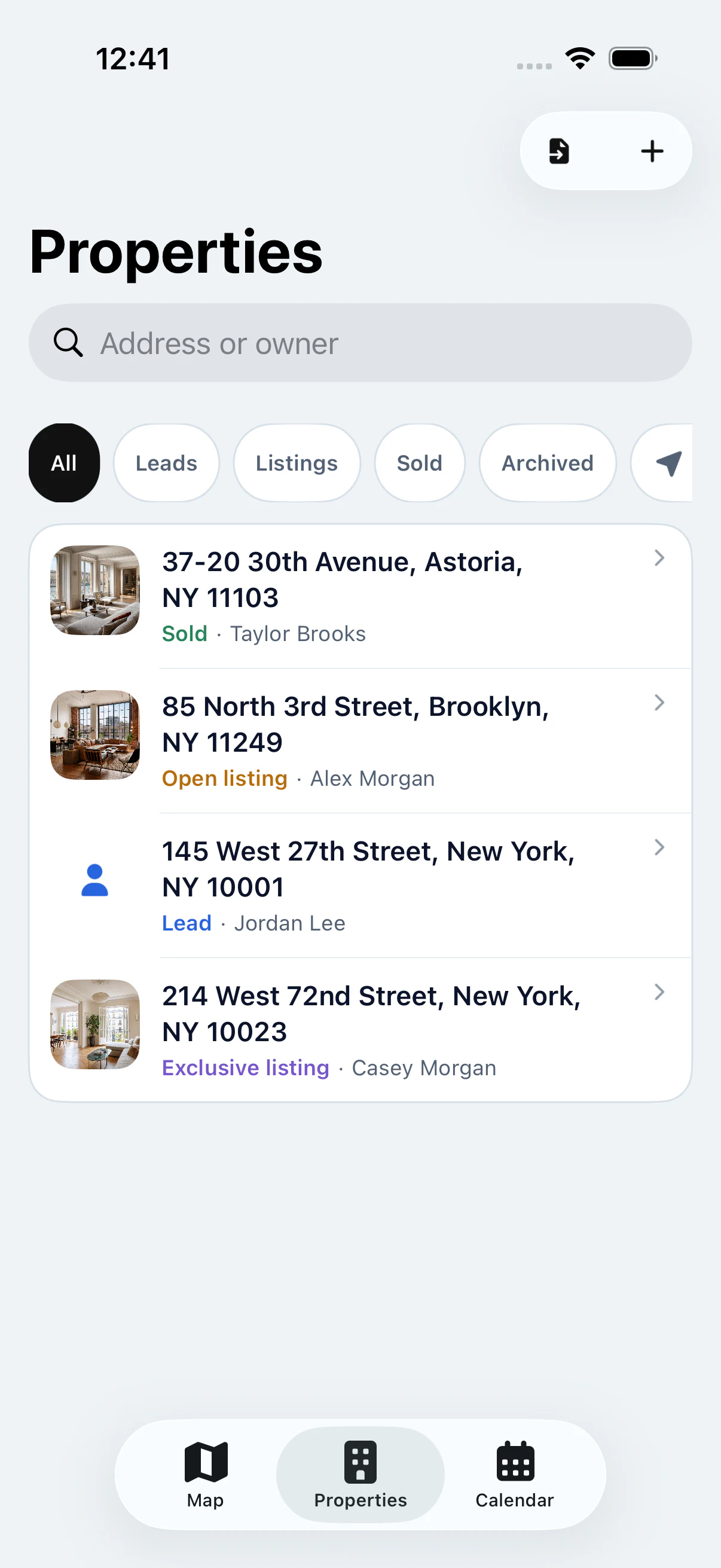
See imported properties in the list and on the map.
PREPARE AND CHECK THE FILE
Start with one row per property and a first row with column names. Check addresses and statuses before exporting. In Excel, Google Sheets or Numbers, save a copy as CSV: an .xlsx file can’t be imported directly.
Open the CSV import in My Estate Map and choose the file. The app matches the columns automatically. If an essential piece of information can’t be identified reliably, the import stops to avoid creating incorrect files.
Fix the errors flagged for each property and the possible duplicates. Pay attention to incomplete addresses or unrecognized statuses. Imported properties join your portfolio; you can then open their files and see them on the map.
The import is a one-time action. Exporting a file from your real estate software doesn’t create an automatic sync with it. Only import information you’re authorized to use in your business.
See all featuresView Pro pricingSpreadsheet or app: how should you track your properties?
KEY POINTS
GOOD TO KNOW
Each row is one property, and the first row holds the column names: address, owner, phone, status.
Street number, street, city, state and ZIP code: a complete address helps place the property correctly on the map.
If your real estate software offers a CSV export, use it the same way. Always keep your original file.
STEP BY STEP
Save your list as CSV.
Open the file in the app.
Fix the flagged errors.
Find the properties in your portfolio.
YOUR QUESTIONS
Your first property is free, on iPhone and iPad.
First export it as CSV. My Estate Map imports CSV files; it doesn’t read .xlsx files directly.

START WITH YOUR FIRST PROPERTY
Add your first property for free, then see it on the map.