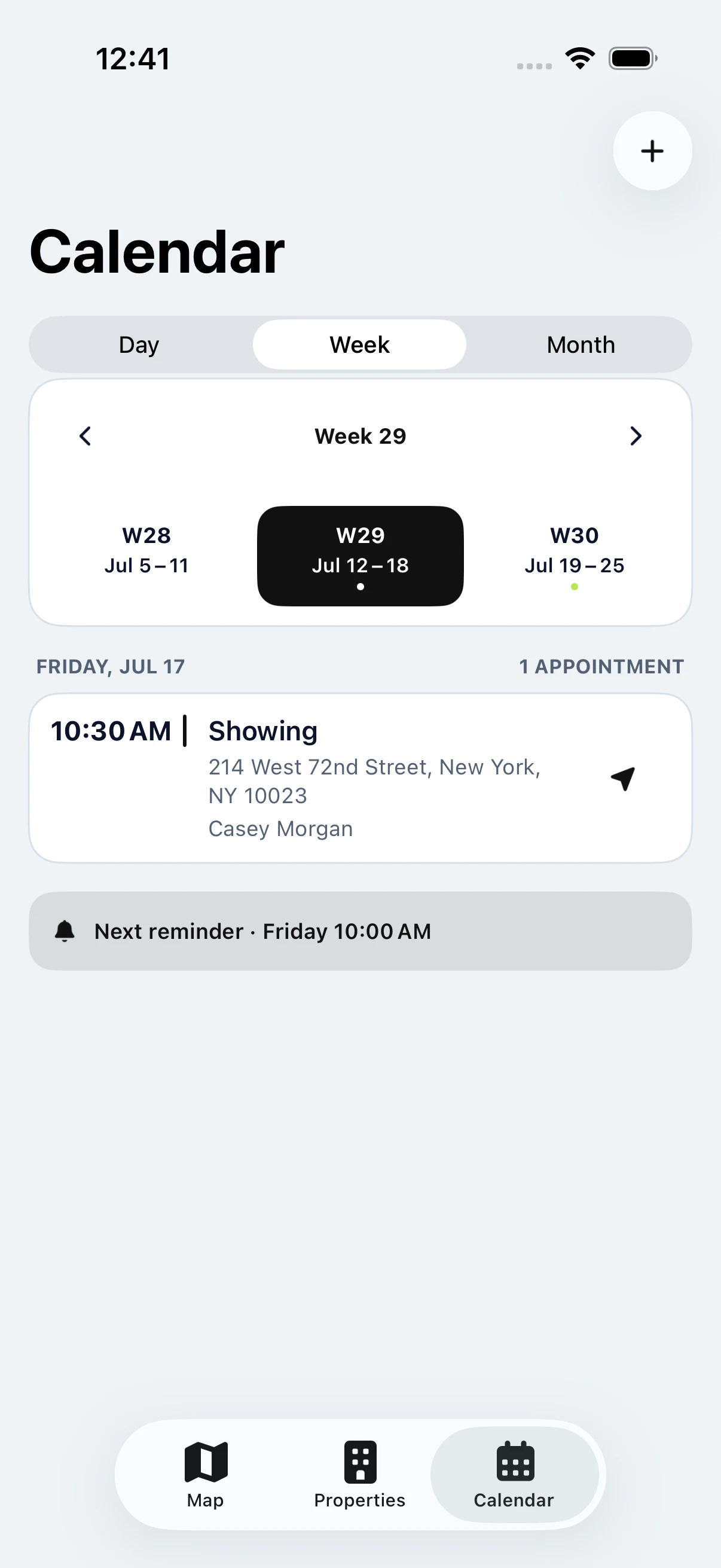
See your schedule
Switch between day, week and month depending on what you’re planning.


CALENDAR APP FOR REAL ESTATE AGENTS
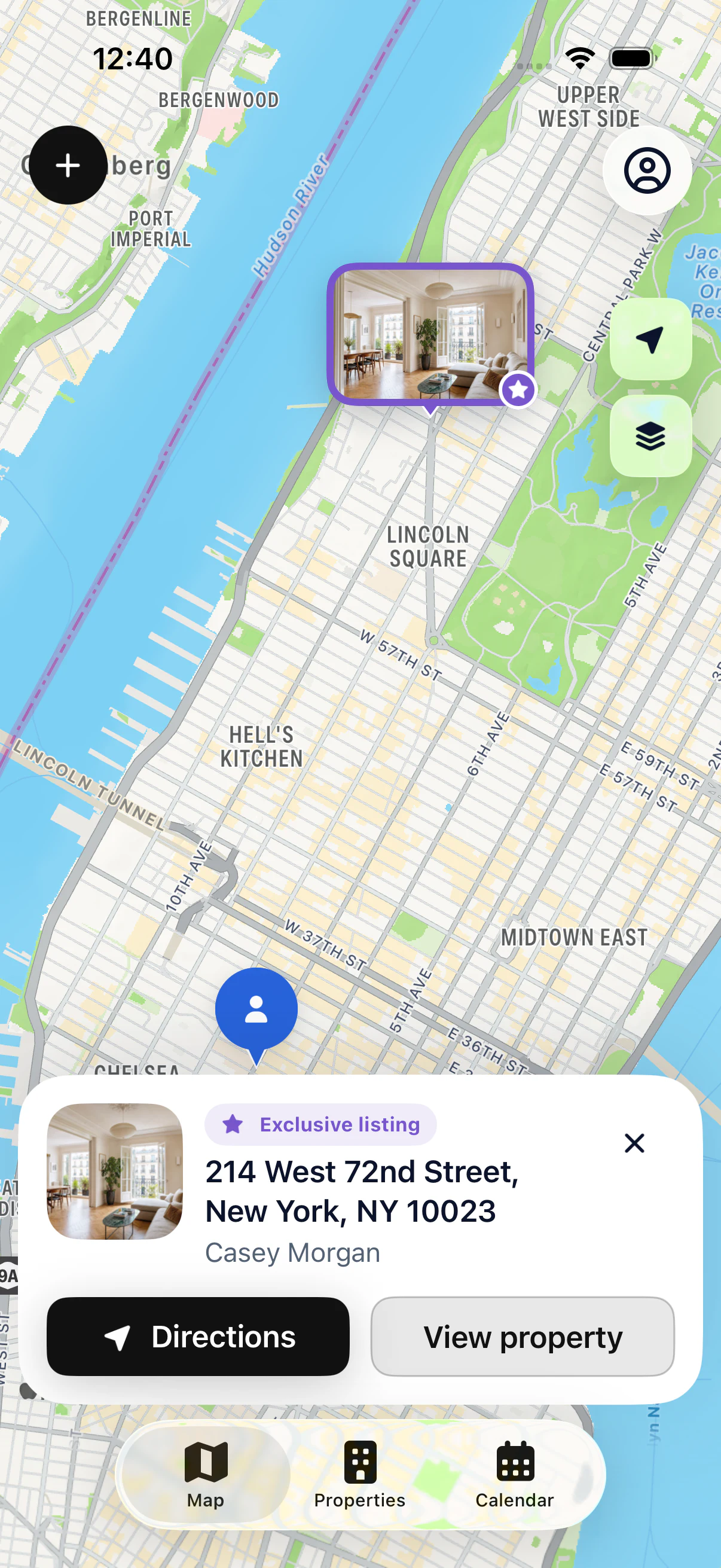
A time slot alone isn’t enough to prepare a showing. The My Estate Map calendar links your appointments to the right properties, so you open their details straight from your schedule.
Your first property is free, on iPhone and iPad.
IN PRACTICE
Switch between day, week and month depending on what you’re planning.
Open the file linked to your appointment and check the address.
Reread your notes and contact details before meeting the owner.
FROM SCHEDULE TO SHOWING
With Pro, create an appointment in the app and link it to the property. Set its time and type to find it in your calendar. Day, week and month views let you look at your schedule at different scales.
Before the appointment, open the linked property to reread your notes and find the owner’s contact details. From the file, start directions to the property address.
Set a local reminder for an appointment, as long as notifications are allowed on your device. The calendar is a personal tool: clients can’t book a time slot themselves and it doesn’t send text confirmations.
Your calendar becomes the starting point of your day: in the morning, open the day view, jump from the appointment to the property file, then to directions. At the end of the week, the month view helps you plan ahead.
KEY POINTS
GOOD TO KNOW
In a regular calendar, you see a time and a name. Here, the appointment opens the property file: address, owner and notes.
Switch from day to week or month view to see upcoming showings and spot open slots.
Set a local reminder so you don’t miss an appointment, then start directions from the property file.
STEP BY STEP
Set the appointment time.
Select the property.
Open its file before the showing.
Start directions from the property.
YOUR QUESTIONS
Your first property is free, on iPhone and iPad.
Yes. When you create the appointment with Pro, select the property. You can then open its file from the appointment.

START WITH YOUR FIRST PROPERTY
Add your first property for free, then see it on the map.